Guide
How to use Vakalat
There is a lot here. You do not need most of it on day one — you need one screen and one number. Start with the five minutes below, then read only the section that describes you.
Five minutes, whoever you are
Open a matter with its CNR
Matters → New matter. Type the sixteen-character CNR from the order sheet. We fetch the case from eCourts, show you the court, the stage, the judge, the parties and the next date, and add nothing until you press the button. Everything else in the product hangs off this one field.Look at the board
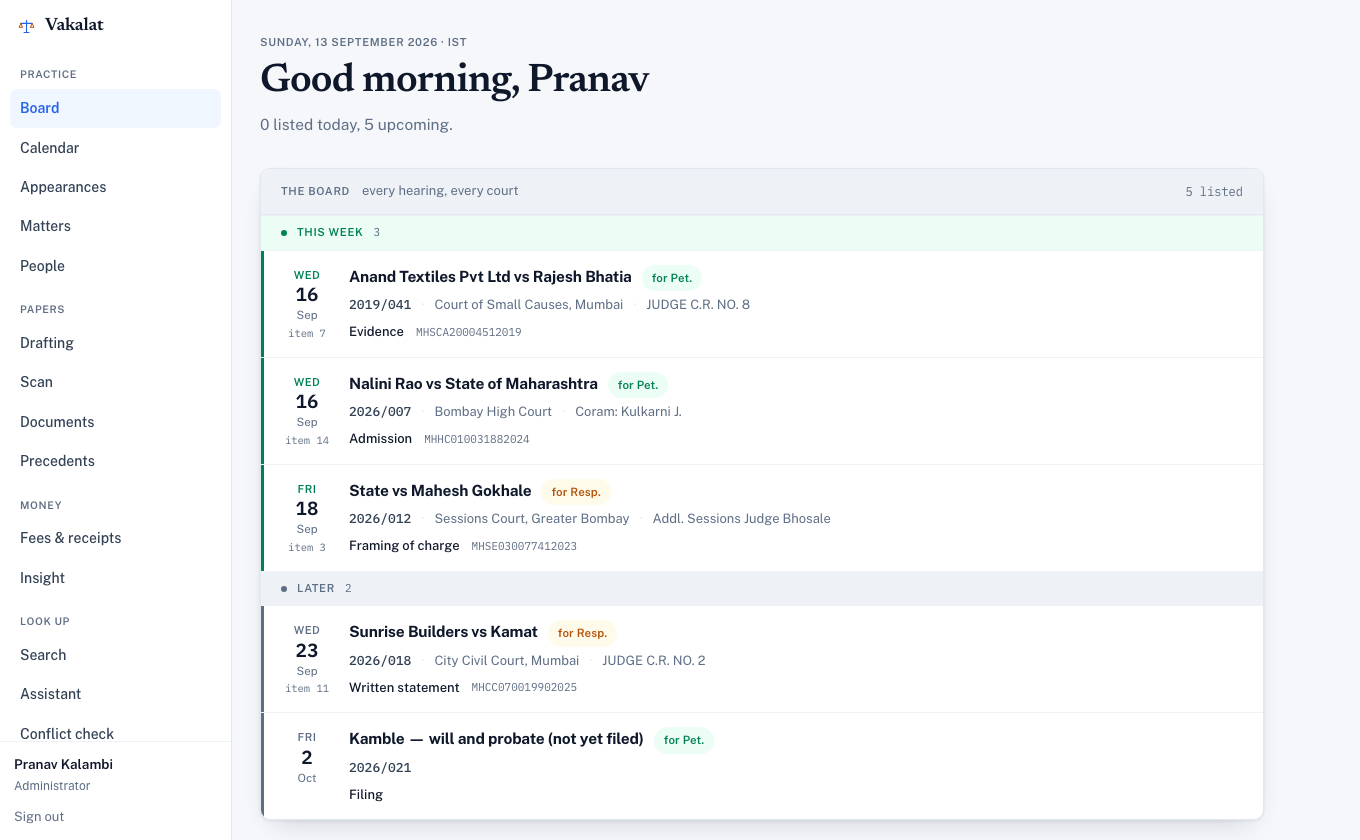
Board is every hearing in every court, nearest first. It is the screen to open in the morning. You did not enter those dates — they came from the court record, and they keep coming.Put the dates in the calendar you already carry
Calendar → Carry it with you. Paste the subscribe link into Google or Apple Calendar once. When a date moves, your phone moves with it. Treat that link like a password.
A matter without a CNR still works — you can open one before the case is filed and attach the court record later — but you will be keeping its dates by hand, and nothing will correct them if they change.
On your own
You are the diary
A sole practitioner, or a junior carrying their own matters. Nobody checks your dates but you, and the cost of missing one is not an afternoon — it is a client.
Bring your whole book in at once
Matters → Import a spreadsheet. One column of CNRs is enough — the court, the parties and the next date are fetched for each. Faster than eighty forms.Let the reminders do the remembering
The day before a hearing, an email goes to you and, if you have invited them, to the client. You do not have to open the app for this to happen.Check limitation before you advise, not after
Limitation computes the last date from the accrual date, with the s.12 exclusions shown as working you can check. Read the caveat on that page — the periods themselves are not yet verified against the bare act.Write the pleading here
Drafting gives you a proper editor — numbered paragraphs, justified text, your own font and margins, and every earlier version kept. Print straight from it; what is on screen is what comes out.Know what you are owed
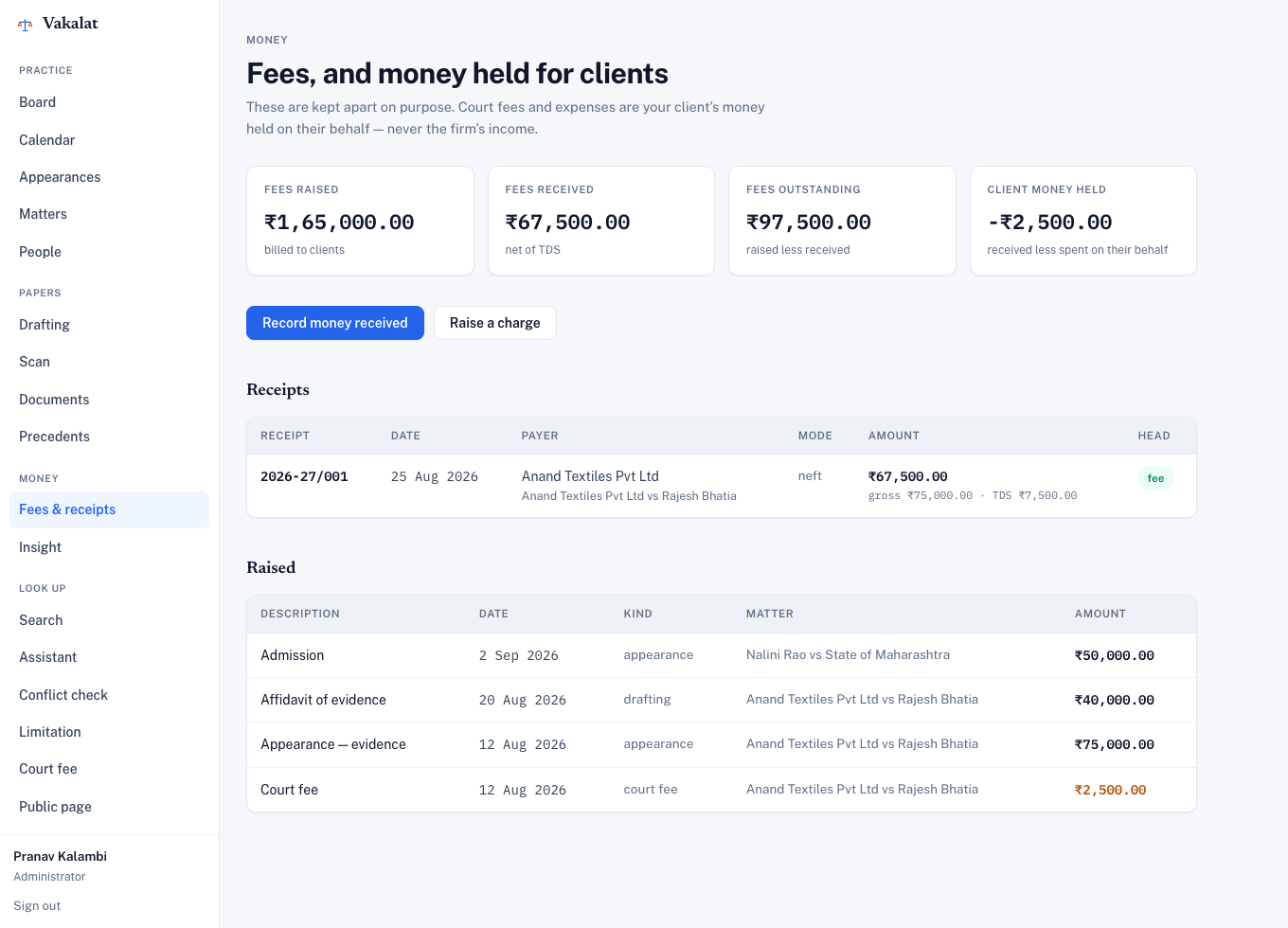
Fees & receipts. Record a charge when you raise it and a receipt when money arrives; TDS is split out and a numbered receipt is produced for the client. Court fees you pay on a client’s behalf are kept apart from your income, because they are not your income.
What it buys you
You stop checking eCourts. You stop keeping the ledger in your head. And when a client rings to ask what is happening, you can send them a link instead of an explanation.
A set of chambers
Several advocates, one book
Advocates who share a clerk, cover each other's dates, and occasionally discover they are on opposite sides of the same matter. The default here is openness: everyone sees the whole book, because that is how chambers work.
Invite the others
People → Invite. Choose Advocate or Clerk — both get the whole chamber. They sign in with their own Google account; nothing is shared by password.Say who is going to court
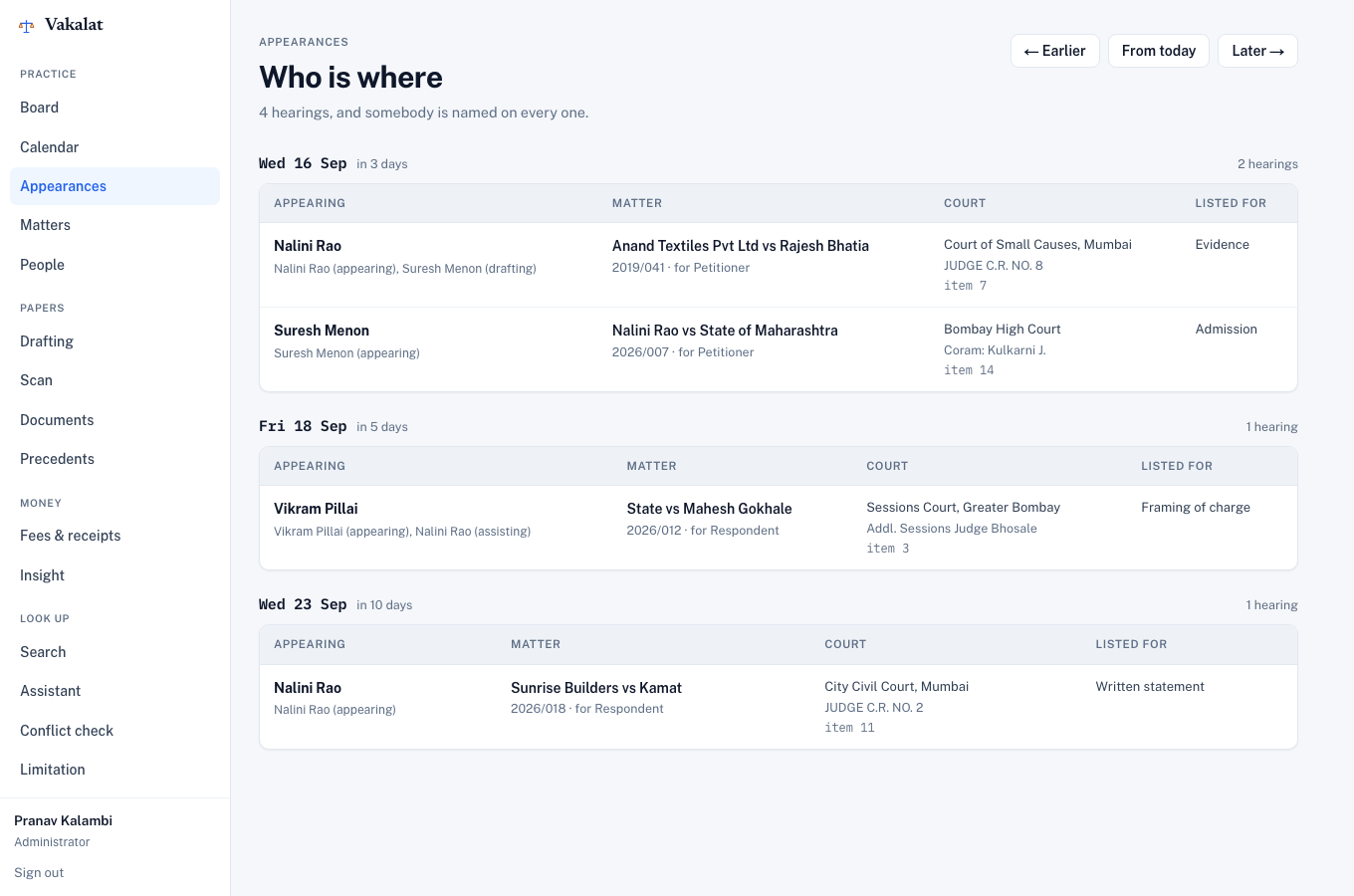
On a matter, Who is on it → assign someone as appearing. That is a different question from who may read the file, and it is the one a clerk is asked on a Monday.Open Appearances on Monday morning
Who is in which court, for which matter, on which day — with the judge and the item number. Every hearing with nobody marked as appearing is flagged. That flag is the point of the screen.Run a conflict check before accepting a brief
Conflict check searches every party the chamber has ever recorded, including in matters you cannot open. It tells you a conflict exists and who to ask — never whose matter it is.
What it buys you
Nobody turns up at the wrong court, and nobody fails to turn up at the right one. Cover is arranged from a screen instead of a group chat.
A law firm
Partners, juniors, a clerk and a typist
More people than can hold the whole book in their heads, work that passes between them, and matters that should not be discussed down the corridor.
Build the team, then decide how open it is
Invite everyone as Advocate or Clerk. Then, on People, decide whether the chamber’s matters stay open to all staff or are restricted to the people named on each one. Open is the default and suits most firms; restrict it for a matrimonial matter, or one where a partner is conflicted.Assign the work, not just the appearance
Appearing, assisting, drafting, reading in. If the firm has restricted matters, being named is also what lets someone open the file at all — so assignment is how you let a junior in, and taking them off is how you stop.Run the typing pool as a queue, not a pile of slips
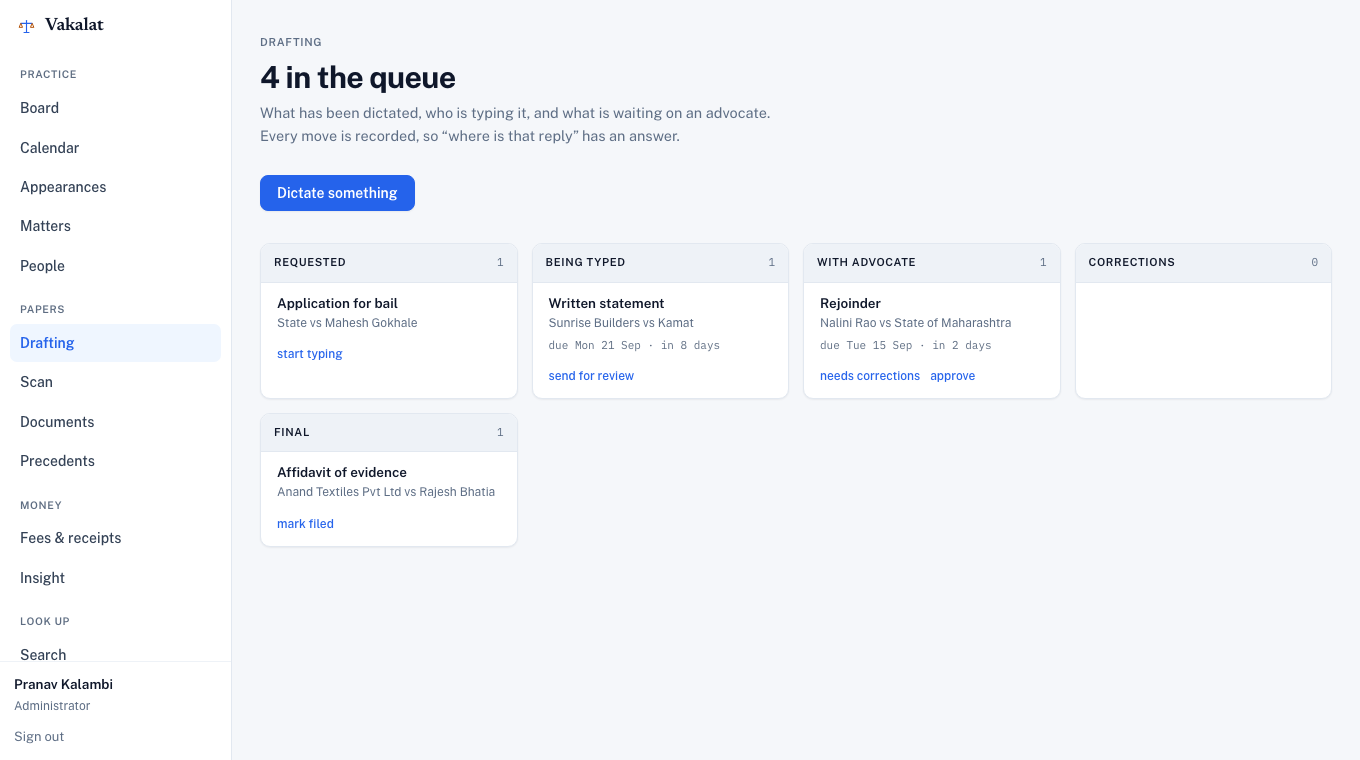
Drafting moves a document through requested → being typed → with advocate → corrections → final → filed. Every move is recorded, so “where is that reply” has an answer without asking anyone. The steno types in the same editor the advocate corrects in, and every version is kept.Give each client their own window
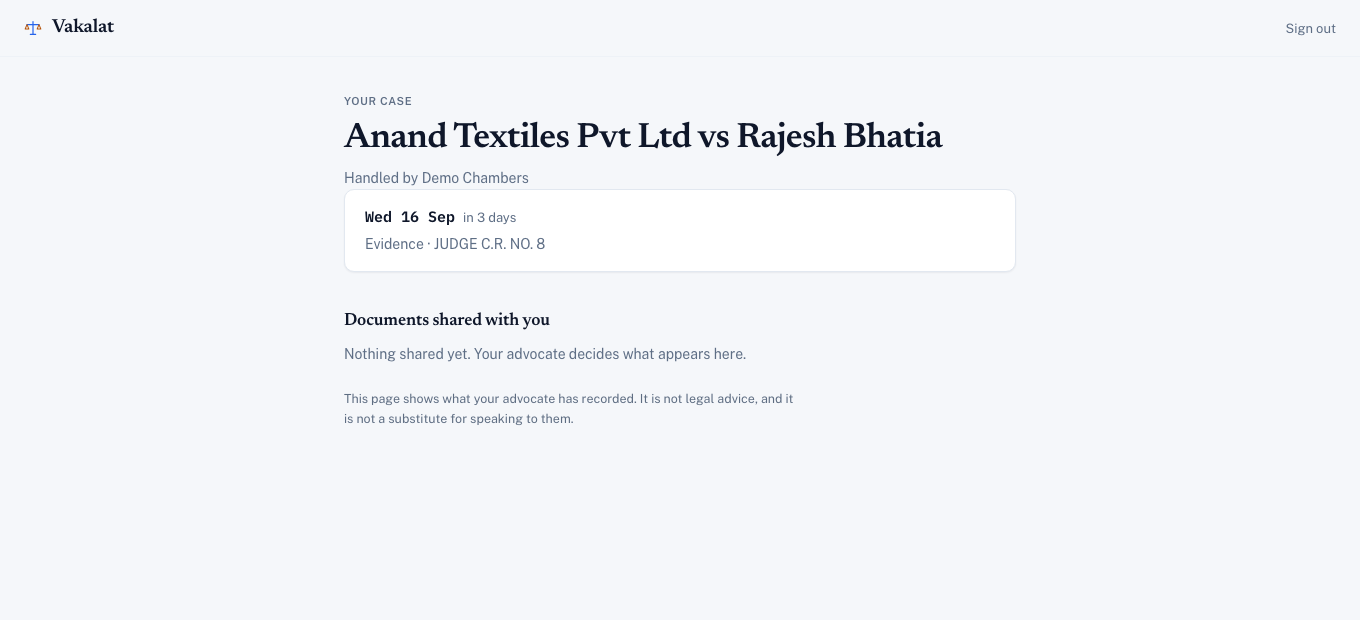
Invite the client to a single matter. They see that matter’s dates and whatever documents you have marked visible — never the fees, never the file, and never another client’s anything.Look at Insight once a month
How cases ended, how long they took, how many hearings each needed, and which advocate carried them. It is a management view, not a scoreboard.
What it buys you
Work stops falling between people. A partner can see what is listed tomorrow and who is covering it without asking three people, and a client can be told without a phone call.
Before you rely on it
What this tool does not do
- It is not a source of law. The section map, the limitation periods, the draft forms, the court-fee rates and our reading of Rule 36 are compiled from general knowledge and are flagged as unverified inside the product. Check them against the bare act before relying on any of them.
- It does not give advice. The assistant answers only from your own matters, your scanned documents and the section map. If it finds nothing, it says so rather than composing an answer.
- It does not open Word files. There is a full editor, and it prints. But a draft written in Word is stored as a document here, not opened for editing.
- It does not advertise you. There is no directory and no ratings. Your public page carries only the particulars the Schedule to Rule 36 permits, and only once you have told the Bar Council.